
Nota di rilascio – 27/11/2025 (riepilogo)
Con questo aggiornamento abbiamo aggiunto diversi miglioramenti e nuove funzionalità per rendere ancora più semplice la digitalizzazione del lavoro quotidiano sia in vigna che in cantina.
Problemi risolti (correzioni di bug)
Questa versione risolve, tra gli altri, i seguenti problemi:
- It is again possible to edit winery details (winery configuration).
- You can now add a bottling step as a task in the Task Manager.
- The date of a soil-cultivation registration in the vineyard can now be edited after saving.
- The search function in dropdown menus works properly again, making long lists much faster and easier to navigate.
Nuove funzionalità
1) Additional languages
The platform is now also available in German, Spanish, and Romanian. You can change the language in the top-right corner of your screen.
2) Cellar inventory (Cellar Library)
In Inventory → Cellar library, you will now find two clear sub-menus:
- Containers: a library to digitise bottles, BIBs, and other packaging types used on your winery.
- Additives: a library to digitise products used in the cellar, including lot numbers.
This makes adding vinification products to wine registrations faster and easier. Below you will find the full explanation of this new feature.
3) Divisione/Unione di un lotto di cantina (CBN)
- You can now split a cellar batch with multiple tanks into new batches per tank, without moving volumes.
- You can also merge two batches into one new batch, again without volume transfers.
4) Export to CSV (Excel)
You can now export data to CSV/Excel for:
- Fasi di imbottigliamentoFasi successive all'imbottigliamentoModulo di raccolta
With this update, this export function is now available for all registrations made in the platform.
Help Desk: Libreria degli additivi per cantine
Questa guida spiega come digitalizzare i prodotti di vinificazione ("additivi") nella Biblioteca della Cantina, aggiungere situazioni di utilizzo con dosaggi preimpostati e registrare i numeri di lotto per la tracciabilità.
Prima di iniziare
In Craft your Taste, all products used in the cellar must be digitized in the Additives Library.
We recommend doing this in advance, during a calmer period before harvest, so you are not blocked later when registering cellar steps.
Dove trovare la Biblioteca degli Additivi
- Open the sidebar.
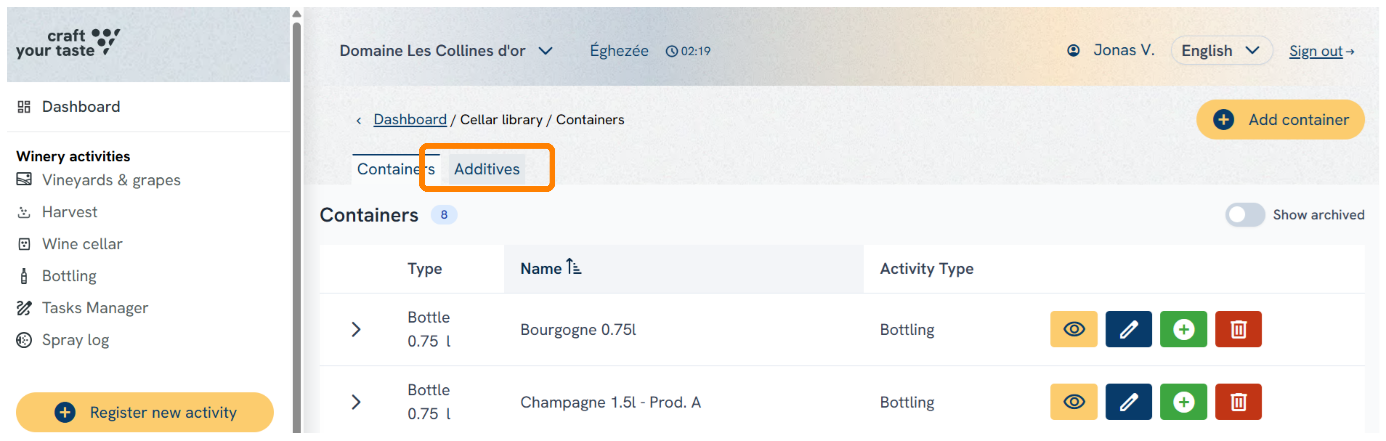
- Go to Inventory → Cellar library.
- You will land on the Containers tab first (bottles, BIB, etc.).
- At the top of the page, switch to the second tab: Additives.
Se apri questa scheda per la prima volta, la tabella sarà vuota: è normale.
Nota importante
Since the latest update, digitizing cellar additives is mandatory.
If a product is missing from the library, you won’t be able to add it during a vinification registration. Taking a moment to digitize your current products now will save time later.
Aggiungi un nuovo additivo
- In the Additives tab, click the yellow button “Add additive” (top right).
- A pop-up form opens with two main sections:
- General information
- Situations
1) Informazioni generali
Compila i seguenti campi:
- Vinification substances
Select the substances contained in this product. The dropdown contains the EU-listed substances for the QR-code regulation.
This will allow Craft your Taste to generate ingredient QR codes per Bottle Batch in the future (planned for 2026).
If a substance is missing, choose “Other”. - Name
Commercial name of the product. - Description of additive
Short product description (from the label or technical sheet). - Purpose of additive
The goal of using this product (what you want to achieve in the wine). - Dedicated wine colors & wine styles
This will be used in a future feature to filter recommended products based on Cellar Batch characteristics (e.g., red still wine).
It will not block you, but helps shorten the product list during “Add vinification product”.
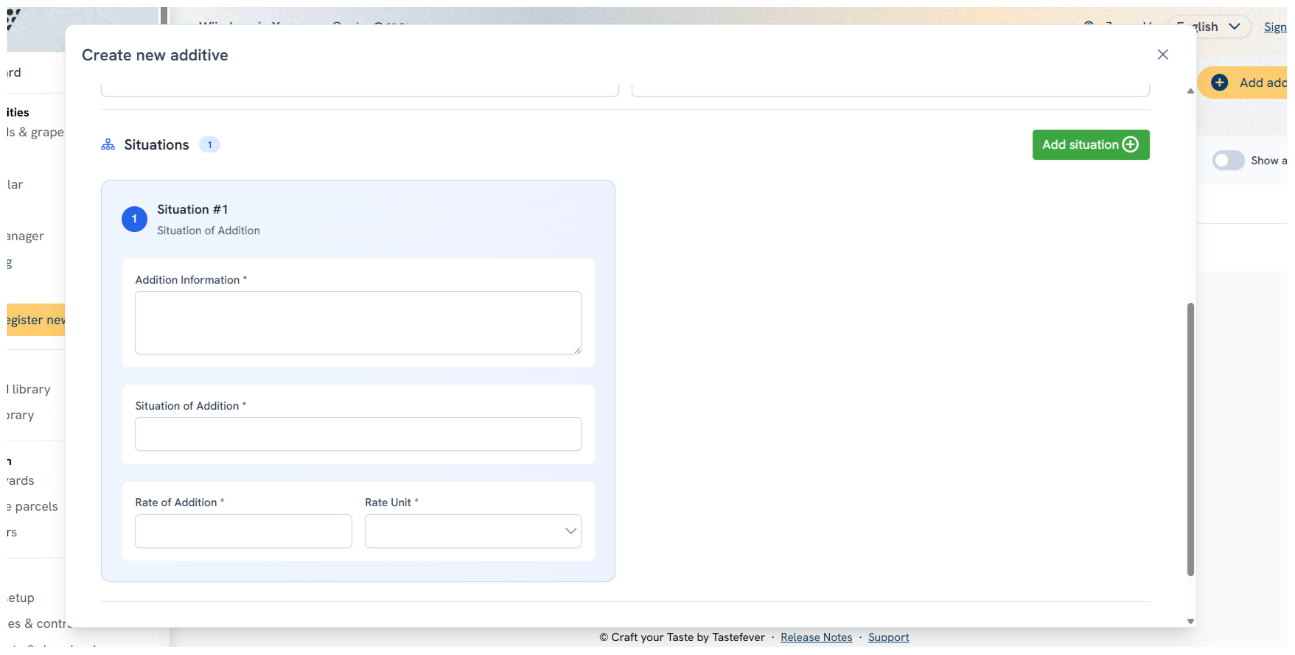
2) Situazioni (scenari di dosaggio preimpostati)
This section helps you save common use cases with a predefined dosage.
Situazione di esempio: Arresto della conversione malolattica – 20 mg / 100 L di vino
Click “Add situation” (green button) to add as many situations as you want. In the “Additional information” field, you can describe the recommended way to add this product to the wine, or share practical guidance on how it should be used in the cellar.
Later, during “Add vinification product”, you can select a situation and the platform will:
- mostra automaticamente il dosaggio correttocalcolare la quantità necessaria per ogni unità di stoccaggio (cuve, barrique, ecc.)
3) Salvare l'additivo
When all details are complete, click Save.
If successful, you’ll see:
“Additive created successfully.”
L'additivo apparirà ora nella panoramica.
Aggiungere numeri di lotto a un additivo (tracciabilità)
For food safety and traceability, it’s important to record lot numbers for products used in your wines.
Craft your Taste lets you register every lot number per additive.
Come aggiungere molto
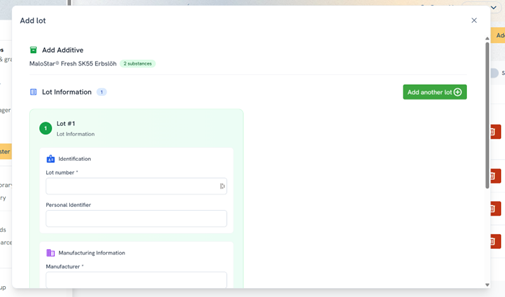
- In the additives overview, click the green “+” button next to the product. Si apre un modulo: compila le informazioni sul lotto.
Importante: questa è una libreria, non un sistema di magazzino
The platform does not ask you to enter quantities in kg/L.
You can store lot numbers for traceability, but you cannot track exact remaining stock per lot yet.
Puoi scegliere uno di questi approcci:
- Track packages in stock
Add a lot for each package, even if the factory lot number is the same.
The system will warn you about duplicates, but allows saving. - Track lot numbers only
Add one entry per unique lot number, regardless of how many packages you have.
Campi del modulo del lotto
- Lot number
Official factory lot number from the package. - Personal identifier
Your own internal ID linked to this lot number.
We display this ID in the platform because it’s often clearer than the factory code.
Recommended: write this personal ID on each package with the same factory lot number. - Manufacturer
Producer of the additive. - Storage location(optional)
Free text field to note where you store the product. - Expiration date
Expiry date as shown on the package.
To add multiple lots at once, click “Add another lot” on the right side of the form.
Riepilogo rapido
- Digitize your cellar products in Inventory → Cellar library → Additives.
- Add an additive with General information+ optional Situations (preset dosages).
- Save the product, then register lot numbers via the green + for traceability.
- Quantities per lot are not tracked yet — this is a library, not a full inventory system.
